



Quite often, when entering a website address in the browser’s address bar, you may see a message that the site is unavailable along with an error name such as Name error, NXDOMAIN, or DNS_PROBE_FINISHED_NXDOMAIN.
According to RFC 2308, such errors occur when the Domain Name System (DNS) lacks information about the requested domain. This may be true, or it may not — it all depends on the cause of the error.
Let’s examine the possible causes of this situation and outline the steps to resolve them.
Organization of domain registry account storage and updates
Earlier, we reviewed the structure of the Domain Name System, where all DNS records for domains are stored in the registries of their respective domain zones.
Each such registry is maintained by a specific company that tracks all changes in the list of domain names and keeps the data up to date.
The complex structure of the DNS system involves several levels of DNS servers that manage domains — including the Central Registry and Internet Service Provider levels. If an error or delay occurs at any of these levels, it immediately affects the website’s accessibility.
Additionally, each DNS level contains a cache, which is typically updated within one or two days depending on the configured TTL (time-to-live) parameter.
Therefore, a resource becomes available on the network only after the cache has been fully updated at every DNS level.
Reasons for domain inaccessibility on the network
There are several categories of reasons why a domain might be unavailable. Here they are:
- DNS system latency;
- The active period of the domain lifecycle has expired;
- NS server settings were reset at the registrar level;
- The domain does not exist or has been deleted from the registry.
Let’s look at each of these causes in more detail.
DNS system latency
Errors in this category occur when any changes are made to domain account data that require DNS updates. Such changes include:
- Initial registration of a domain name;
- Transition of a domain from an inactive lifecycle phase to an active one;
- Changes to DNS servers or their configuration in the registrar’s account;
- Changing the registrar.
When performing any of these actions, changes are propagated through DNS databases, and the results become visible only after caches are refreshed at each system level, as mentioned earlier.
This process typically takes 24 to 72 hours, depending on the server settings.
If necessary, you can significantly reduce the downtime of your website. To do this, execute several commands or configuration steps on your local device. This helps identify the true cause of inaccessibility, clear caches, and restore operation by connecting to alternative servers. Let’s walk through these actions.
First, you need to clear your browser cache. This operation is usually straightforward: open your browser’s menu, select “Clear browsing history”, and choose a time range covering the last few days.
DNS cache clearing depends on the operating system. In Windows, open the terminal and run the ipconfig command with the appropriate parameter:
> ipconfig /flushdns
The result of this command is shown below.

As you can see, the result is positive — the cache was successfully flushed.
If this does not help and the site remains inaccessible, the issue is likely within your ISP’s DNS cache. To bypass this, you can use the hosts configuration file by adding your hosting provider’s server IP address. Let’s see how to do this.
Open the file and add the following line:
178.20.157.229 mydoman.com
Here, 178.20.157.229 is the IP address of our server, and mydoman.com is the domain name.
Save your changes and close the file. If the site becomes available afterward, the delay was caused by the provider’s DNS cache.
In general, to determine whether the provider’s server caused the delay, you can use a more modern approach.
If the issue lies with the provider’s DNS server, the site will be available when connecting through alternative DNS servers or a Proxy.
You can check the site’s availability by pinging its address with a known utility.
Let’s do this on our Windows machine by entering the following command in the terminal:
> ping mydoman.com
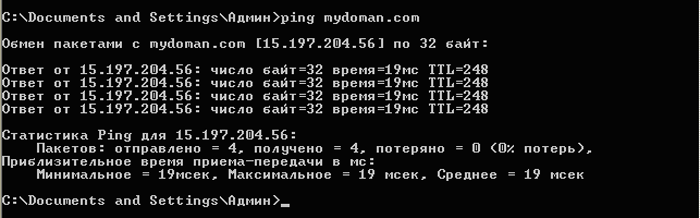
We can see that packet exchange is occurring without losses, which means the site is accessible on the network.
In this case, possible actions include:
- Editing the local hosts file (as shown earlier);
- Connecting to the website via an online proxy server;
- Temporarily setting up alternative DNS servers.
You can connect through an online proxy using one of many available web services.
For example, https://www.proxysite.com/ allows you to select the type and location of a server. In our example, we chose a server located in Europe. After clicking GO, the connection process begins.
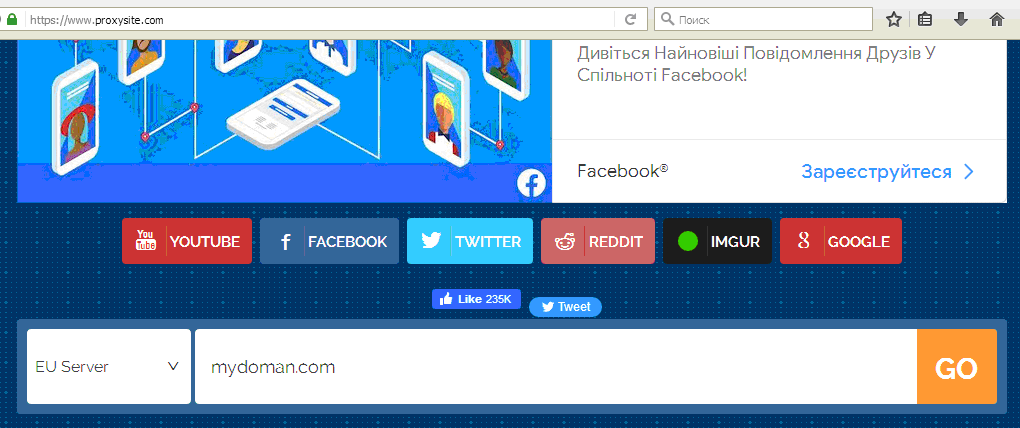
Setting alternative DNS servers is also simple. It’s best to use trusted providers like Google or Cloudflare, which support the DoH (DNS over HTTPS) technology — this allows DNS queries even when certain ports are blocked by your ISP.
Let’s configure Google’s DNS servers for our site. Open the TCP properties window and specify the addresses as shown below. Then visit https://developers.google.com/speed/public-dns/cache and fill out the form.
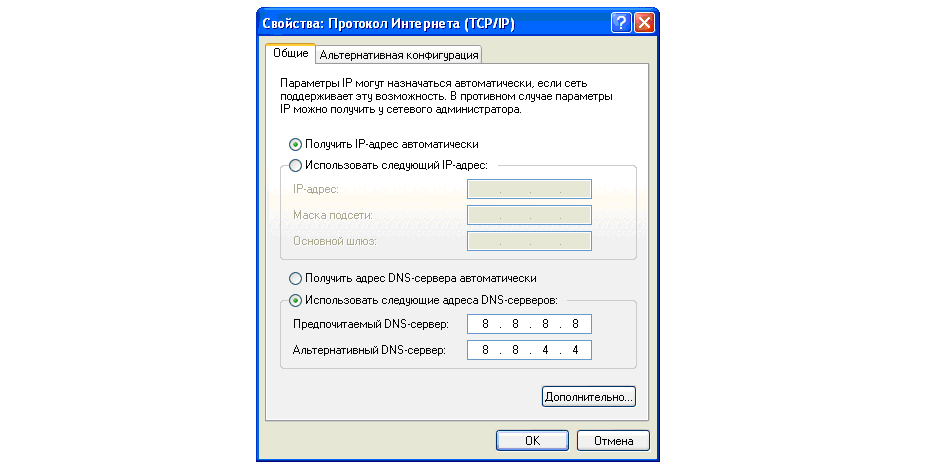
After performing these steps, the resource should become available online.
The active period of the domain lifecycle has expired
If a domain is in one of the inactive lifecycle phases — Hold, Redemption Period, or Pending Delete — it becomes unavailable online and cannot be reactivated technically.
Usually, to restore such a domain, you need to pay for the next registration period (a year or more). However, this applies only to the Hold and Redemption Period phases. Restoration is not possible during the Pending Delete phase.
NS server settings were reset at the registrar level
It’s quite common for NS server settings in your domain registrar account to reset, causing your website to become unavailable.
To fix this, log into your registrar account and re-enter the NS server addresses provided by your hosting provider.
Such an account may look like this:
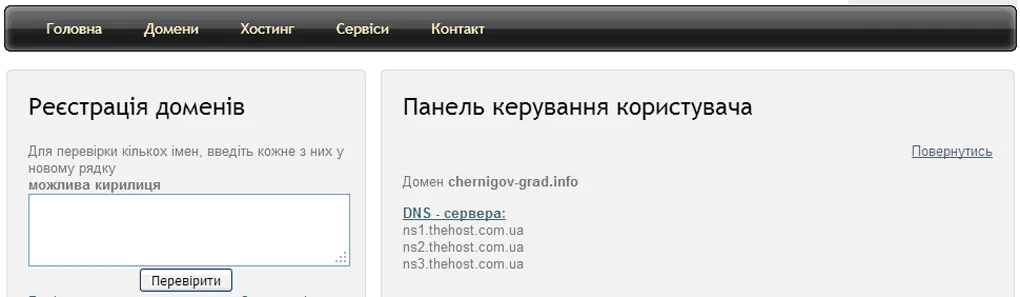
In this example, the addresses of three NS servers are listed for the domain chernigov-grad.info.
The domain does not exist or has been deleted from the registry
Sometimes, when entering a website address, a typo occurs in the domain name.
As a result, the browser sends a request to a non-existent address and receives an appropriate server response.
When the Pending Delete phase ends, the domain record is completely removed from the registry, meaning the domain is no longer accessible.
Moreover, it won’t be available for re-registration for several days or even weeks.
Only after this period expires will it become available again — beginning a new lifecycle.