


According to the updated ranking of the best content management systems (CMS) by the well-known service W3Techs, WordPress confidently holds leading positions both in the overall list (43.1%) and among well-known CMS (63.0%). Such popularity contributes to the widespread use of the system for various web projects — from blogs to online stores. As is known, to run any of these projects, it is necessary to install WordPress on a VPS (Virtual Private Server) or shared hosting — depending on the site’s resource requirements.
Let’s take a closer look at the entire process of installing WordPress on a VPS running Ubuntu — from preparing the software environment to launching the WordPress Admin Console.
Requirements for Installing WordPress
Before installing the system, the server software environment must be prepared to ensure the coordinated operation of the LAMP technology stack, which includes:
- A Linux-based operating system;
- Apache web server;
- MySQL database server;
- PHP hypertext preprocessor.
Only with this set of technologies can WordPress operate fully and relatively securely. Below we will look at the process of their installation and/or verification in the current system.
Preparing the LAMP Environment
To manage our VPS server, we are using Ubuntu 22.04 OS, which belongs to the Linux family, so one of the requirements is already met.
Next, we move on to installing the MySQL database server.
Installing the MySQL Server
First, update the package index on the server using the command:
$ sudo apt update

We can see that 8 software packages can be updated in the system. Now we will install the MySQL server package. In this case, the installation proceeds without any configuration prompts, including password requests. Enter the following in the terminal:
$ sudo apt install mysql-server
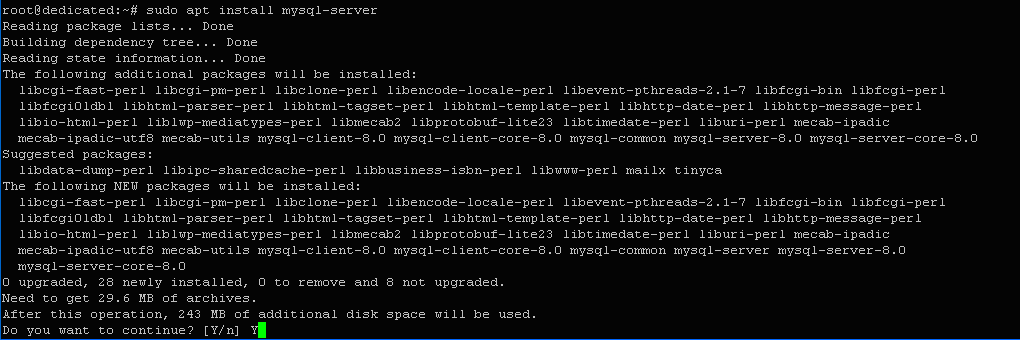
Confirm the prompt to use 243 MB of additional disk space, after which the installation process continues.
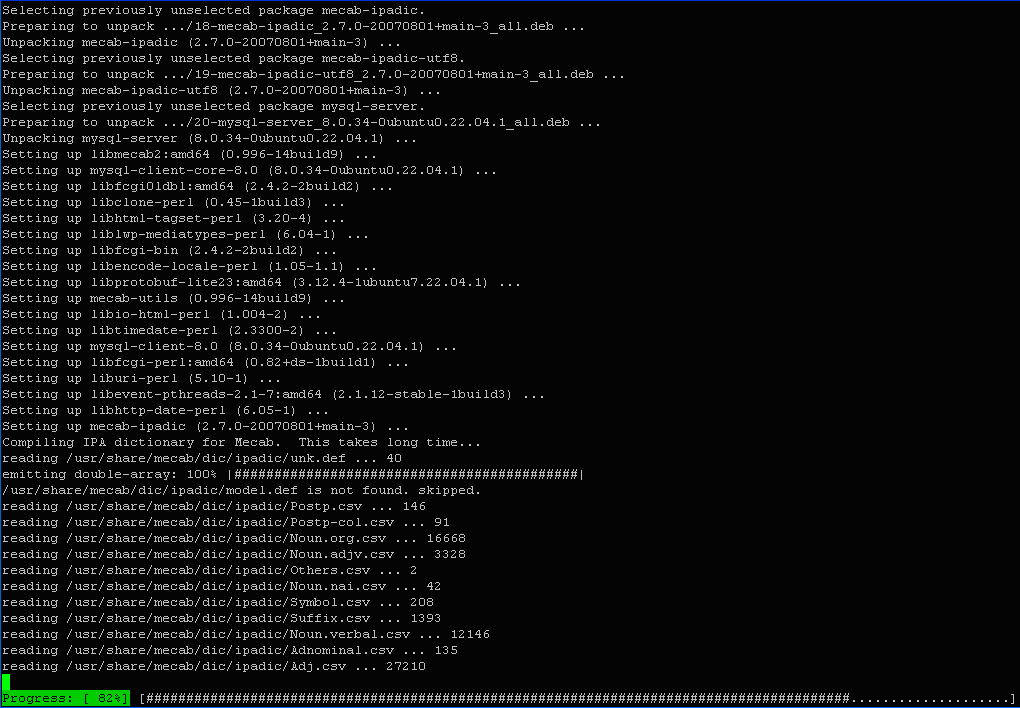
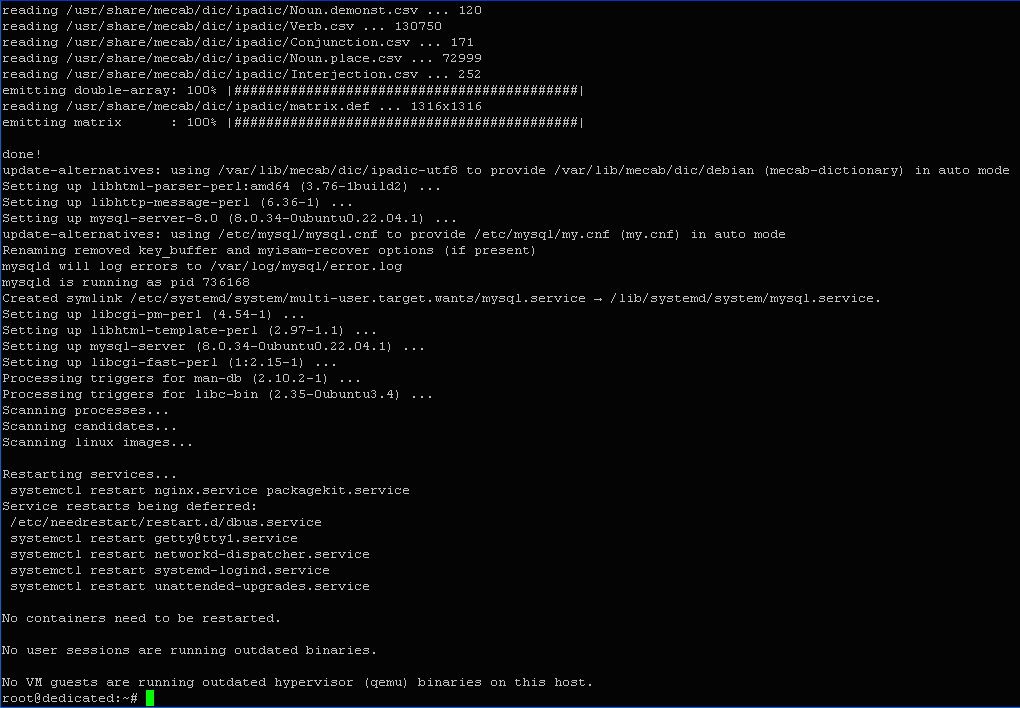
As we can see, the installation was successful: “Setting up mysql-server (8.0.34-0ubuntu0.22.04.1)”. Its version is 8.0.34.
During the initial MySQL setup, you should run the security script, which allows changing some default parameters. For example, it affects anonymous (test) user access to the server, which directly impacts system security. The script’s operation consists of answering a series of questions displayed in the terminal. Run the script with the command:
$ sudo mysql_secure_installation

Confirm enabling automatic password validation depending on the chosen security level. The level options are shown below.

Select the MEDIUM level, where the password must contain at least 8 characters, including numbers, uppercase and lowercase Latin letters, and special symbols.

Disable anonymous user access to the system.

Allow remote access to the system for the root user.

Restrict user access to the test database.

Confirm reloading of the privilege table to apply the changes made.

As a result, the server installation has been successfully completed: “All done!”.
To access the MySQL command line, you need to authenticate. Note that starting from MySQL version 5.7, user authentication with root privileges is performed automatically via the auth_socket module, which eliminates the need for a password. In this case, connect to the server using:
$ sudo mysql
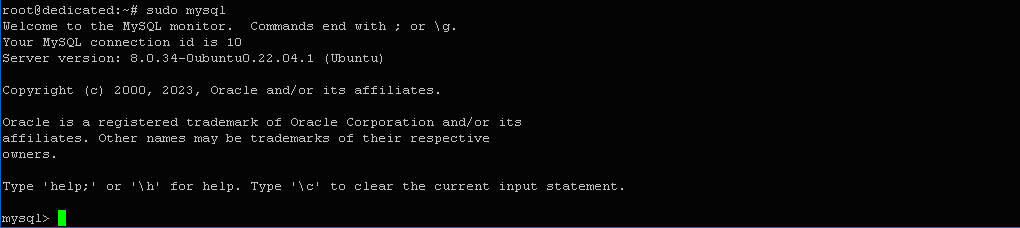
Here you can also check which server version is installed: “Server version: 8.0.34”.
This authentication method is the most convenient and secure, but sometimes password access may be required. In such cases, you need to change the authentication module, for example, to caching_sha2_password.
To check which authentication module is currently set, use the command:
SELECT user,authentication_string,plugin,host FROM mysql.user;
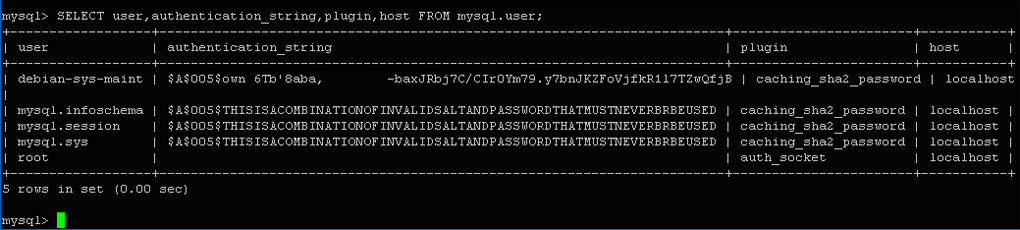
You can verify that the auth_socket module is active for the root user, as expected.
To change it, enter the following command in the MySQL command line:
ALTER USER 'root'@'dedicated' IDENTIFIED WITH caching_sha2_password BY 'password';
where password is the new password for the root user.
For this authentication method, the command to connect to the server looks like this:
$ mysql -u root -p
Now administrative privileges can only be obtained after entering the password. Exit the MySQL shell with the command:
$ exit

Thus, the MySQL component has been successfully installed.
Installing PHP
First, let’s check which version of PHP is currently available in the official Ubuntu repository. This can be done using the following command:
$ sudo apt show php
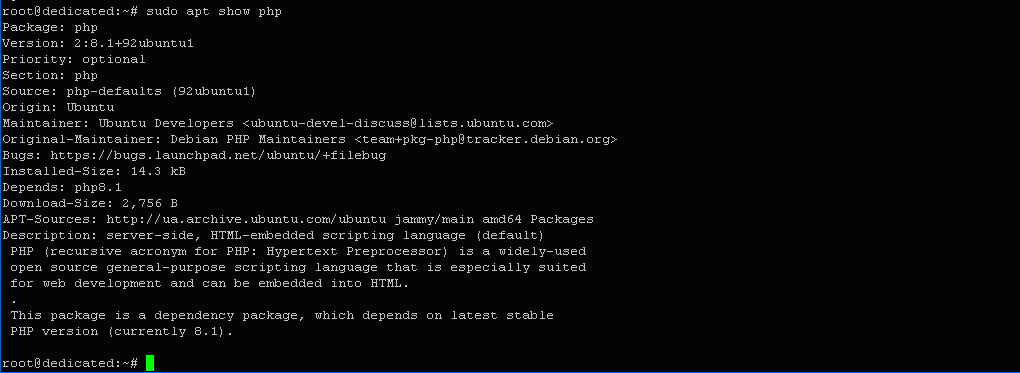
We can see that the current version is: “PHP version (currently 8.1)”.
Let’s install version 8.1 from the repository:
$ sudo apt install php
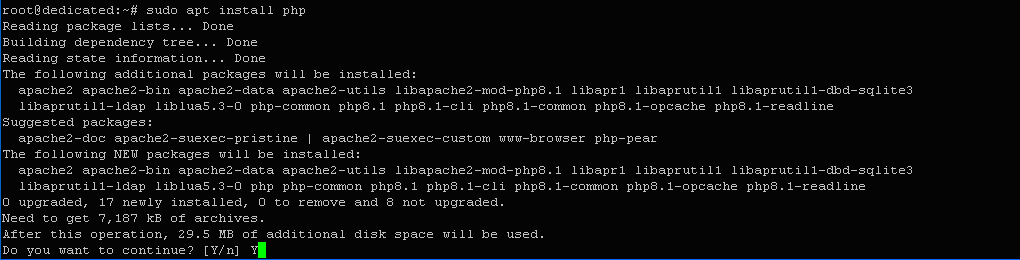
Confirm the allocation of 29.5 MB of disk space — the installation process continues.
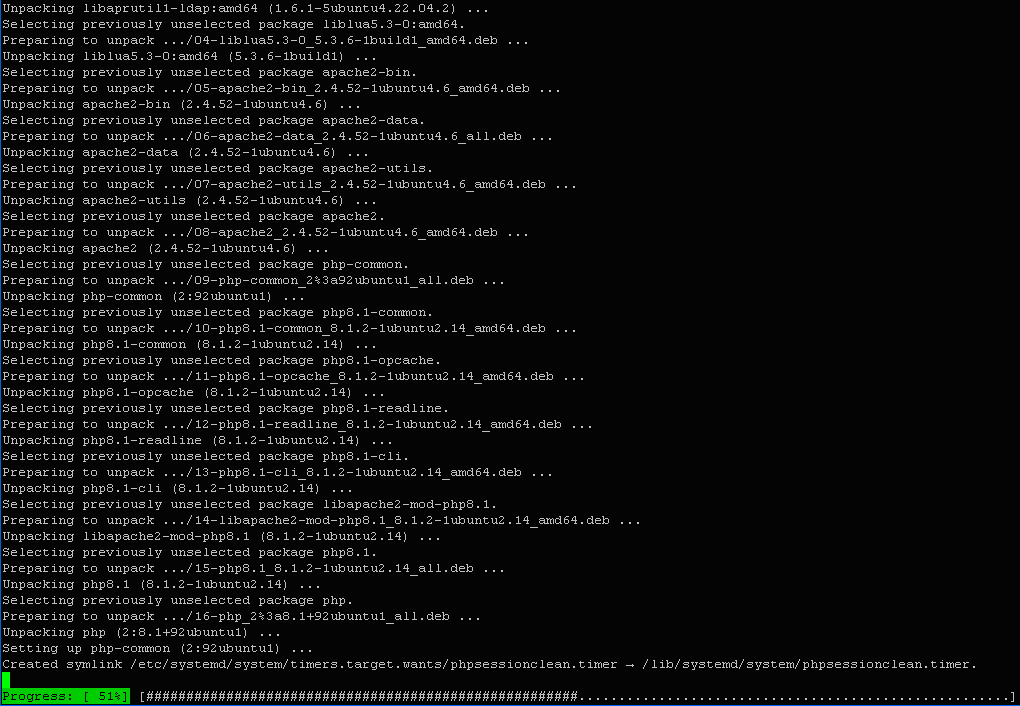
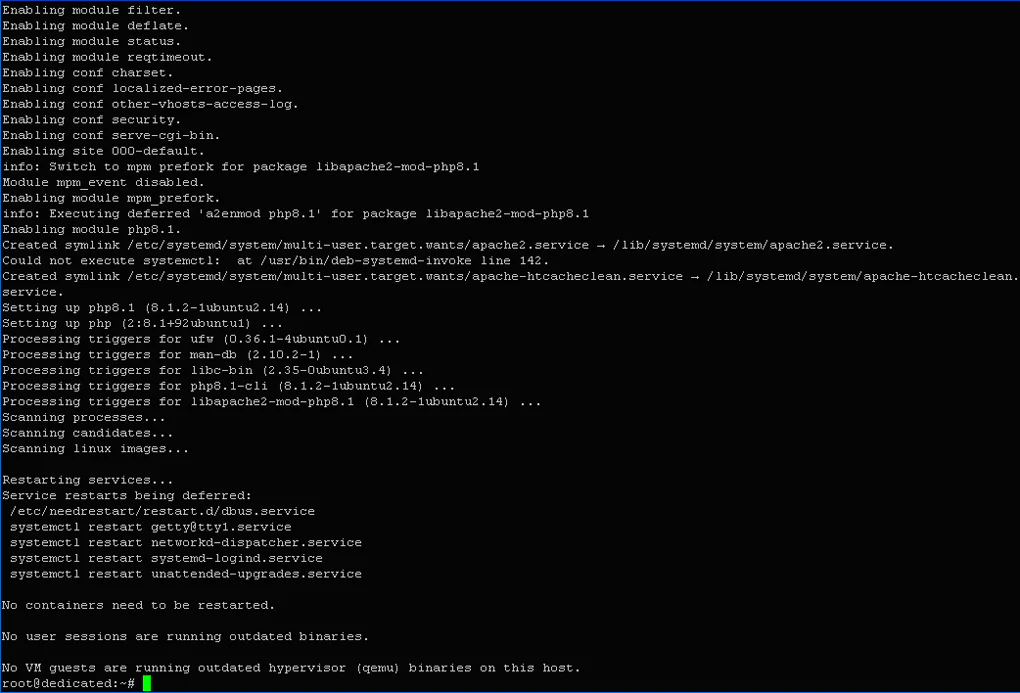
The installation completed successfully: “Setting up php 8.1”.
You can check the installed version using the command:
$ php -v

To enable the PHP preprocessor to interact with the Apache web server, you need to install an additional package. Enter the following command in the terminal:
$ sudo apt install libapache2-mod-php
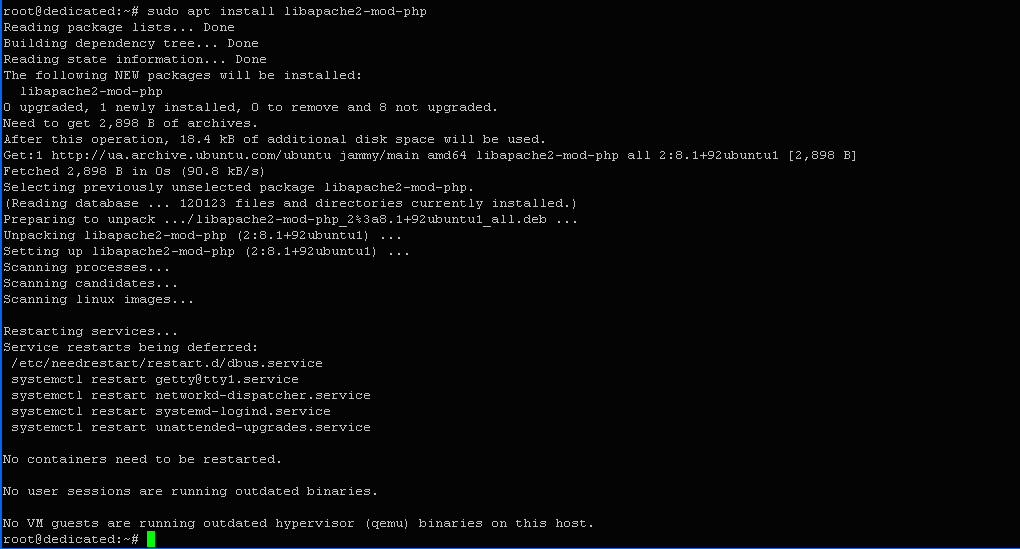
Thus, another LAMP stack component has been successfully installed and prepared for integration with the web server.
Installing the Apache Web Server
The Apache web server is always available for installation from the official Ubuntu repositories. First, update the local package index, as we did earlier:
$ sudo apt update
Then install the required package:
$ sudo apt install apache2

As we can see, this LAMP component was already installed on our machine. Its version is 2.4.52.
During installation, the web server is automatically registered in UFW (Uncomplicated Firewall), providing several profiles for configuring firewall access.
Let’s display the list of available profiles. To do this, enter in the terminal:
$ sudo ufw app list
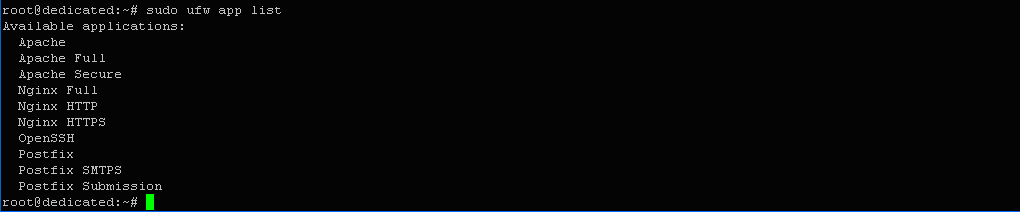
The list will include three different profiles:
- Apache;
- Apache Full;
- Apache Secure.
The last two are more secure and require an SSL certificate. We will enable the Apache profile, which opens port 80 without data encryption. To do this, run the command:
$ sudo ufw allow 'Apache'

As a result, the firewall rules were updated, and the Apache profile became active.
You can check the web server status using the command:
$ sudo systemctl status apache2
Thus, our web server has been installed and prepared for operation.
Deploying the WordPress CMS
The deployment process of the system can be divided into several stages:
- Creating a database;
- Creating a new user and configuring their privileges;
- Selecting the software version and downloading it to the server;
- Unpacking the archive and setting access permissions for the main WordPress directory;
- Continuing installation in the browser;
- Logging into the WordPress Dashboard.
Let’s move on to the practical implementation of these stages.
Creating a Database
To perform any actions for managing MySQL, you must log in. For the root user, these commands may vary depending on the authentication method used:
$ mysql -u root –p (login with password)
$ sudo mysql (socket login)
Let’s create a database named bazawp. This is done using the command:
> CREATE DATABASE bazawp;

The database has been successfully created.
Creating a New User and Configuring Permissions
You can create a user to manage the database using the following command:
> CREATE USER 'inhosting'@'dedicated' IDENTIFIED BY 'newparol75N!';
Where inhosting is the username, and newparol75N! is the password for accessing the system.

Note that the password must comply with the previously set MEDIUM security level — only then will the system accept it.
Grant the user full privileges to work with the database:
> GRANT ALL PRIVILEGES ON bazawp.* TO 'inhosting'@'dedicated';

Save the changes:
> FLUSH PRIVILEGES;

The privileges have been successfully saved.
Exit MySQL:
> exit

Next, restart the Apache web server to apply the settings:
$ /etc/init.d/apache2 restart

Selecting a Version and Downloading WordPress to the Server
To choose the required version, go to the official WordPress releases page. There, you can select the current Ukrainian or English version from the 6.3 branch. You can copy the download link to the tar.gz archive using the right mouse button.
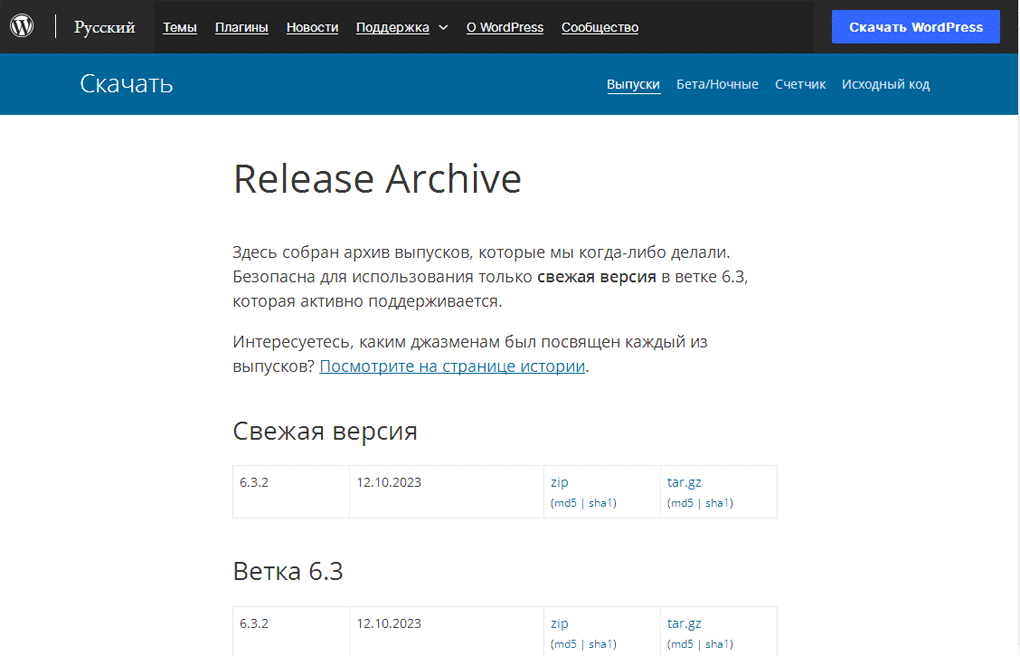
Go to the directory for storing files and download the archive:
$ cd /var/www/html $ wget https://wordpress.org/wordpress-6.3.2-en_US.tar.gz
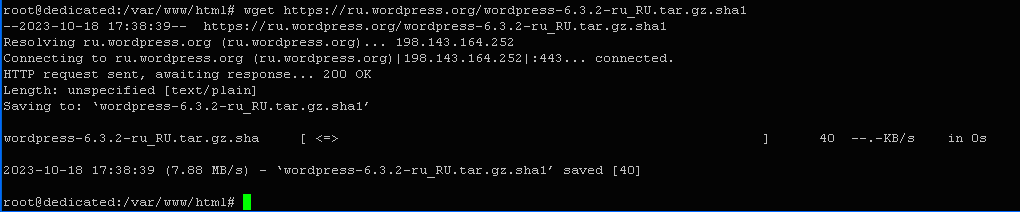
The file has been successfully downloaded to the server.
Extracting the Archive and Setting Permissions
Unpack the archive using the following command:
$ tar -xzvf wordpress-6.3.2-en_US.tar.gz
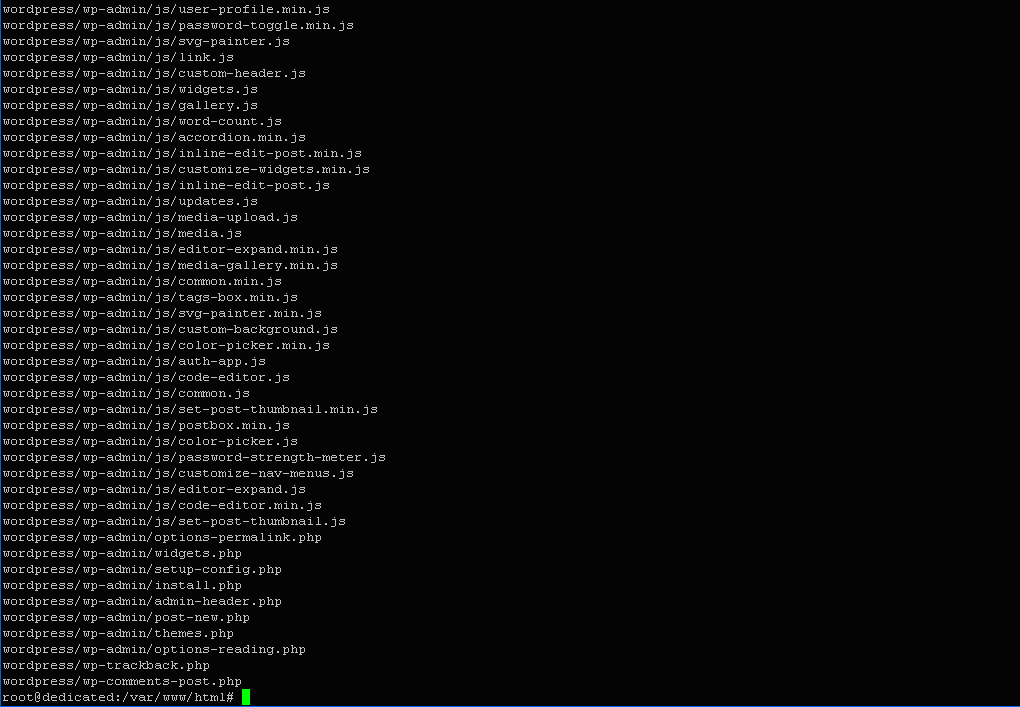
Then set permissions for the wp-content directory:
$ chmod -R 777 /var/www/html/wordpress/wp-content

The permissions have been successfully applied.
Restart Apache:
$ /etc/init.d/apache2 restart
Continuing Installation in the Browser
To continue installing WordPress, enter the following link in your browser:
http://your_vps_ip_address/wordpress/wp-admin/setup-config.php
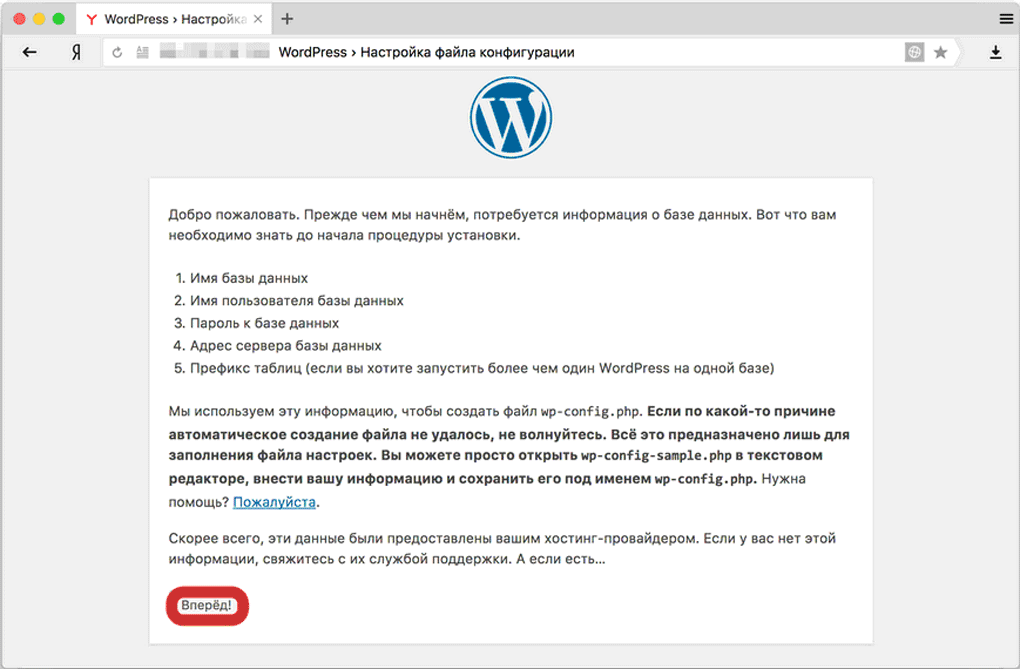
After clicking “Continue”, you need to enter the username and database information created earlier. If the automatic creation of the wp-config.php file fails, it can be created manually using the nano editor:
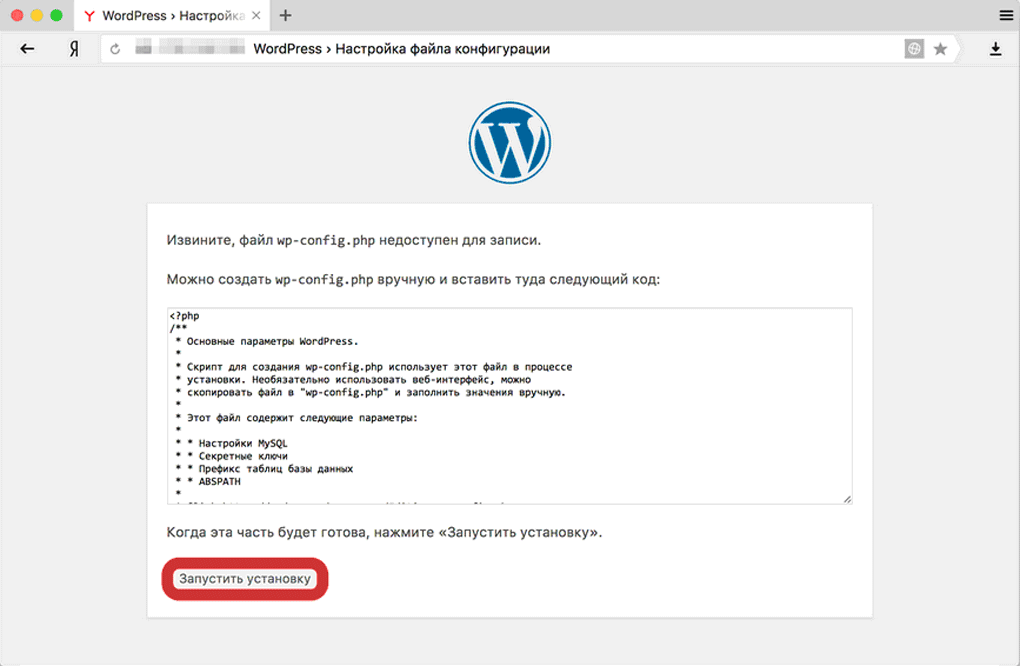
$ cd /var/www/html $ nano wp-config.php
Paste the code suggested by the browser into this file, save the changes, and return to the browser to continue the installation by clicking “Run the installation”.
Logging in to the WordPress Dashboard
After completing the installation, WordPress will prompt you to log in to the Dashboard.
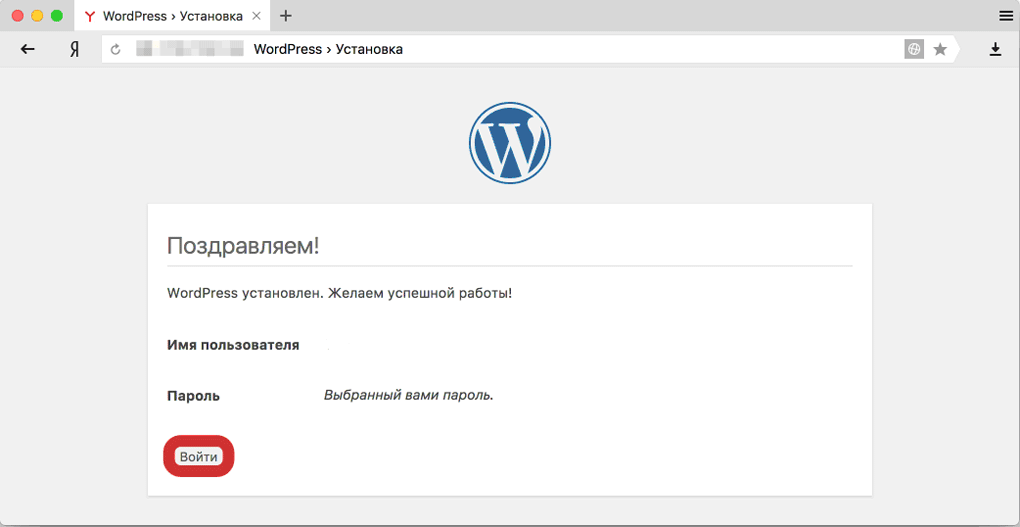
After logging in, the user will have full access to the WordPress admin panel.
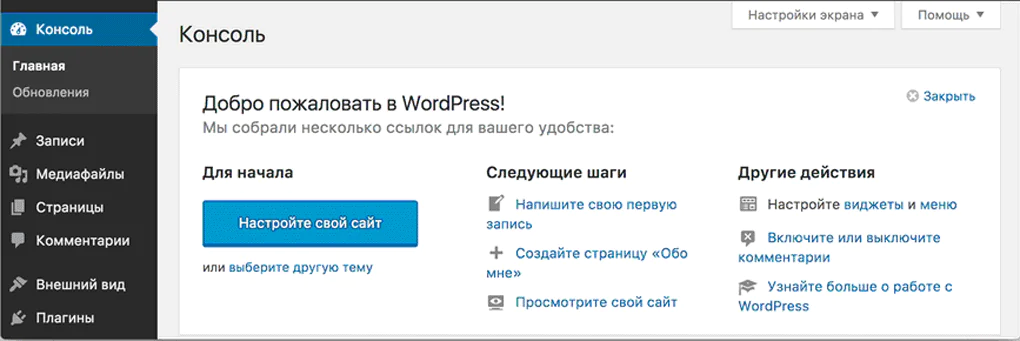
Thus, WordPress has been successfully installed on a VPS server running Ubuntu 22.04.