


Launching any program or process in a Linux environment is accompanied by the creation of a log to record all changes related to their operation. Logs are entries made in these journals. This information is used by the server to organize its work and serves as a starting point for identifying possible system failures.
However, over time, log files increase in size, so they require maintenance. LogRotate is part of the basic Linux system software and is designed to perform these functions. Let’s take a closer look at how it works.
Log management mechanism in Linux-like systems
The LogRotate program works automatically and generally doesn’t require configuration. However, for greater flexibility in log management and convenience for the system administrator, it still needs to be adjusted according to specific requirements.
For this purpose, several levels of control have been provided by developers, which we’ll review below. But first, let’s outline the sequence of operations that ensure proper log maintenance and management.
Log system maintenance consists of adding new entries to the logs and ensuring their automatic rotation. The sequence of actions is approximately as follows:
- creating an empty log immediately after initializing a new process;
- adding entries to the log whenever an event occurs related to the running process;
- archiving the log file once it becomes full;
- placing the created archive in a predefined directory.
As mentioned earlier, LogRotate settings can be managed at several levels. Their priority corresponds to the reverse order in the list below. These levels include:
- system level;
- individual process level;
- user level.
System level.
The basic level defines the main operations that the program performs for any process — log creation, archiving, moving, etc. Settings are stored in the logrotate.conf configuration file.
Individual process level.
This level allows managing the program’s behavior for any running process — both system and user-level ones. It is implemented through configuration files stored for each process in the system directory logrotate.d.
User level.
This allows custom settings for each user individually. In this case, the LogRotate configuration file and log files are located in the user’s home directory. These settings have the highest priority and override any default values specified in the system configuration file.
Below are examples of configuration changes for each of these levels.
System-level LogRotate configuration
We’ll use a server running Ubuntu 22.04.
First, let’s find out which version of the program is installed in the system. To do this, enter the following command in the terminal:
$ logrotate --version

As we can see, version 3.19.0 is installed.
Next, let’s view the contents of the main configuration file using the command:
$ nano /etc/logrotate.conf
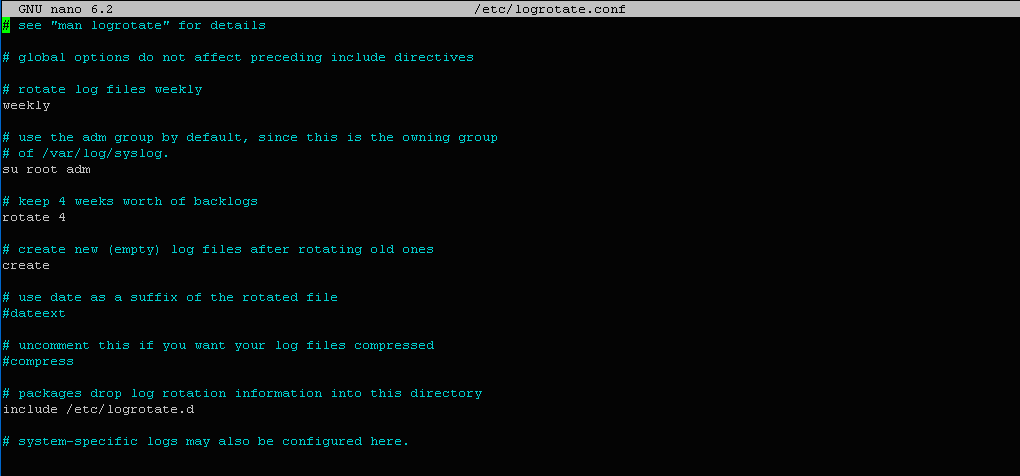
The general operations and settings for managing logs of all processes running in the system look like this:
weekly
su root adm
rotate 4
create
include /etc/logrotate.d
Here:
- weekly — runs the program once a week;
- su root adm — sets the default administrative group;
- rotate 4 — maximum number of old log files to keep;
- create — creates new log files;
- include /etc/logrotate.d — specifies the directory path containing configuration files for individual processes.
If necessary, these parameters can be modified directly in this file, but such changes will affect all processes, so it’s usually better to use other configuration levels.
Process-level log management
This level allows for more flexible configuration of the program for each process individually.
Let’s view the contents of the system directory logrotate.d, which stores configuration files (their names correspond to process names):
$ ls -l /etc/logrotate.d
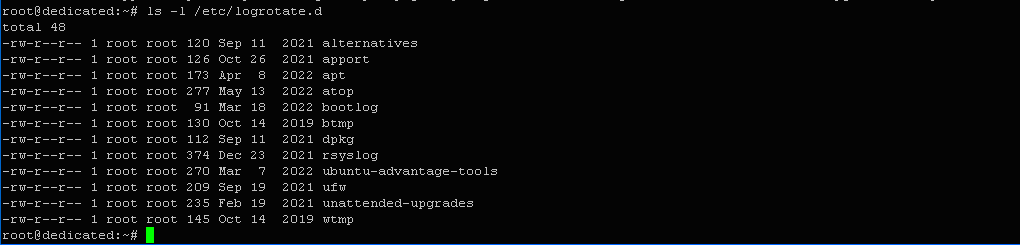
For example, the configuration file for the error reporting service apport has the same name.
Let’s view its contents:
$ cat /etc/logrotate.d/apport

We get the following result:
daily
rotate 7
delaycompress
compress
notifempty
missingok
Parameter explanations:
- daily — runs the program daily;
- compress — compresses the log file;
- delaycompress — delays compression until the next rotation;
- notifempty — prevents rotation if the log file is empty;
- missingok — ignores missing log files without showing an error.
Log storage location for apport:/var/log/apport.log.
Let’s create our own configuration file for a custom process called user-proc:
$ nano /etc/logrotate.d/user-proc
Add the following code:
/var/log/user-proc/*.log {

 weekly
 rotate 5
 compress
 create
 missingok
 notifempty
 sharedscripts

 postrotate
 systemctl reload user-proc
 endscript

}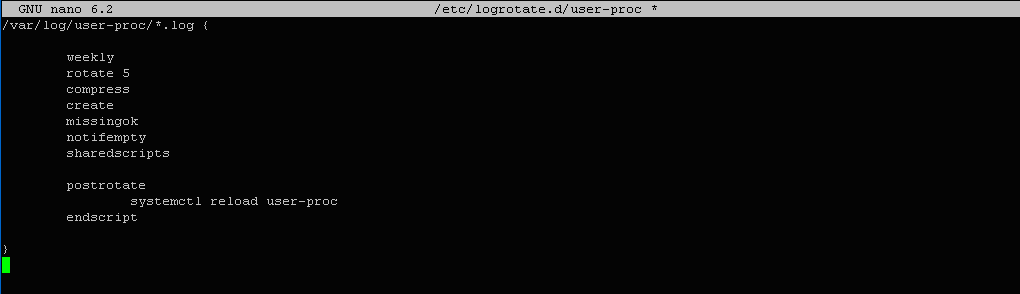
Explanation of new parameters:
- sharedscripts — allows shared scripts to run once for all logs;
- postrotate — defines a script to run after rotation;
in this case, it reloads the user-proc process.
Create a directory for this process’s logs:
$ mkdir /var/log/user-proc

Check the configuration in debug mode:
$ sudo logrotate /etc/logrotate.conf --debug
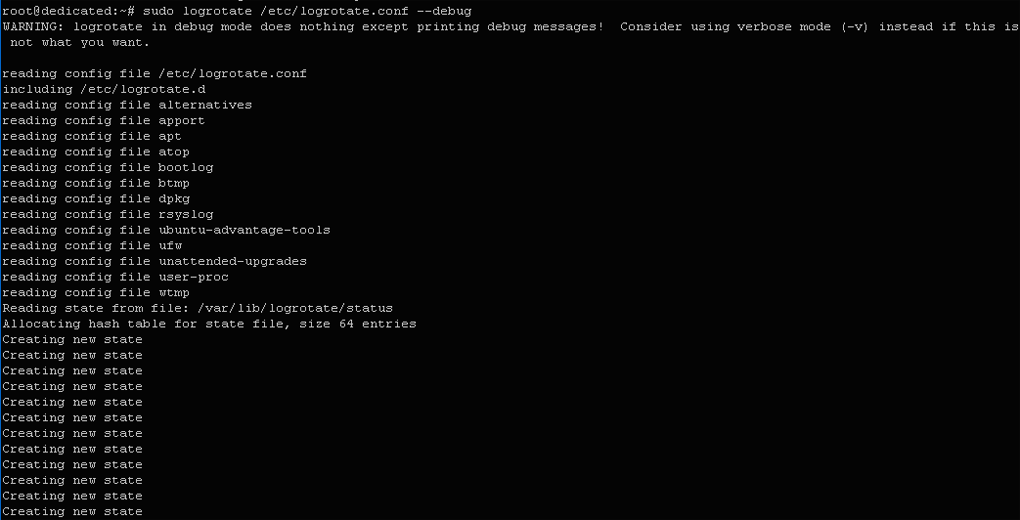
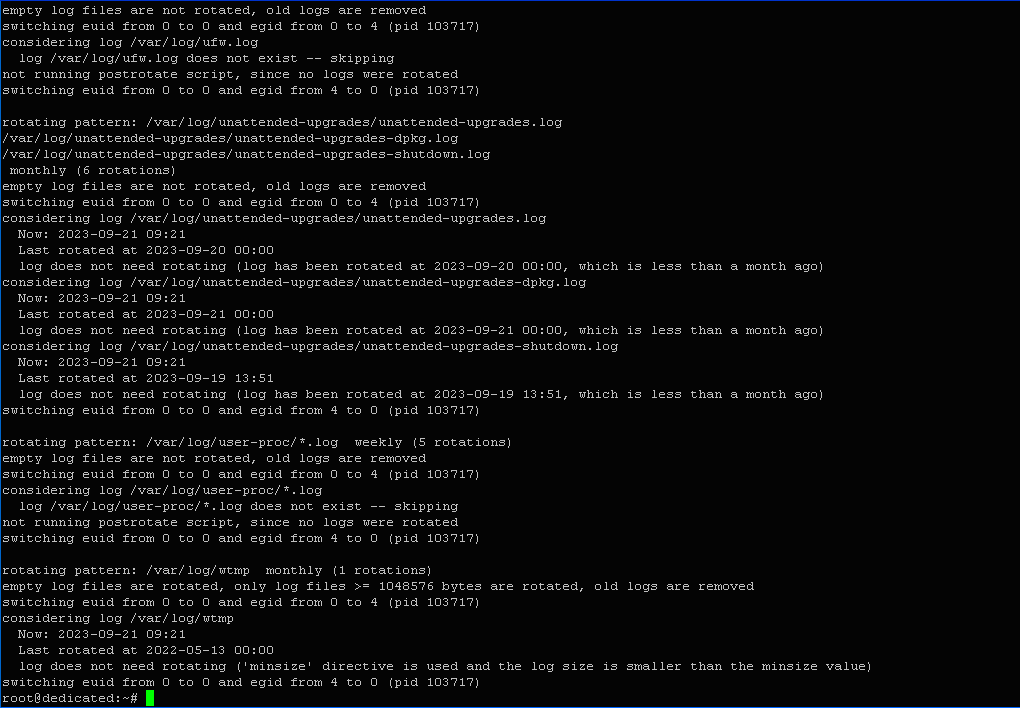
Among the results, you’ll see lines like:
rotating pattern: /var/log/user-proc/*.log weekly (5 rotations)
empty log files are not rotated, old logs are removed
This means that the user-proc configuration has been successfully created.
User-level log management
First, let’s create a user for whom we’ll configure logging:
$ sudo useradd -m -s /bin/bash -c "Admin User Ubuntu" userubuntu

Here:
- userubuntu — the new user’s name;
- -m — creates a home directory;
- -s — specifies the shell;
- -c — adds a comment.
Create the configuration file:
$ nano /home/userubuntu/logrotate.conf
Add the following lines:
/home/userubuntu/logs/*.log {

 daily
 rotate 12
 missingok
 create
 compress
}
Now let’s create a directory for logs and a log file:
$ mkdir /home/userubuntu/logs
$ echo > /home/userubuntu/logs/access.log

Check if the configuration works properly:
$ logrotate /home/userubuntu/logrotate.conf --state /home/userubuntu/logrotate-state --verbose
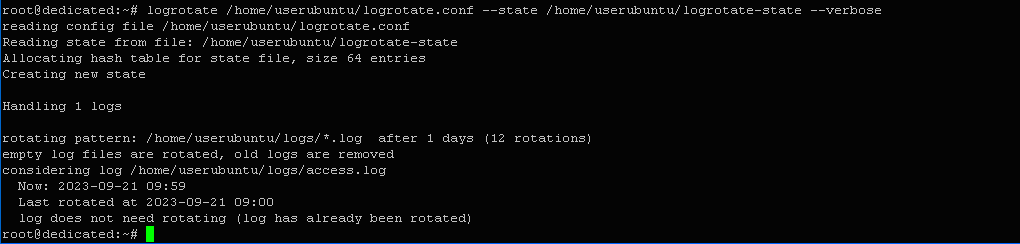
The output will include:
rotating pattern: /home/userubuntu/logs/*.log after 1 days (12 rotations)
empty log files are rotated, old logs are removed
considering log /home/userubuntu/logs/access.log
Now: 2023-09-21 09:59
Last rotated at 2023-09-21 09:00
log does not need rotating (log has already been rotated)
Let’s check the state file:
$ nano /home/userubuntu/logrotate-state

It records the date and time of the process execution:2023-9-21-9:0:0.
Let’s configure automatic execution of the program every hour using the cron scheduler:
$ crontab -e

Add the following line:
30 * * * * /usr/sbin/logrotate /home/userubuntu/logrotate.conf --state /home/userubuntu/logrotate-state
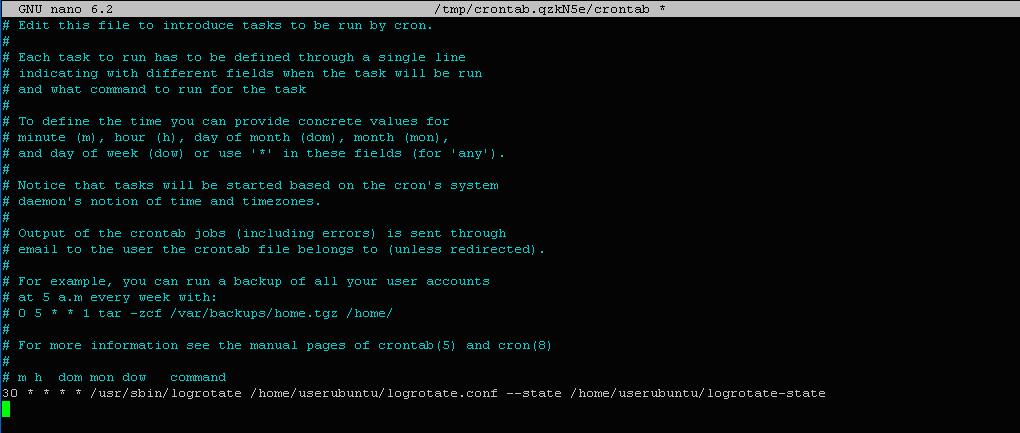
After saving the changes, LogRotate will run at the 30th minute of every hour, around the clock.