


DirectAdmin is an efficient and relatively inexpensive tool for managing hosting at any level. Thanks to its low license cost and wide range of features, the control panel has become popular among hosting providers in the US and Europe who seek to simplify website management for both themselves and their clients.
Below, we will explore the main features of DirectAdmin and describe, step by step, how to install it on a VPS server running the Ubuntu operating system.
DirectAdmin Features
DirectAdmin operates on three access levels:
- Administrator,
- Reseller,
- User.
Each level has its own set of tools — from managing DNS records to configuring error pages.
The main characteristics of the panel, as listed in the developer documentation:
- several types of licenses;
- integrated ticket system;
- support for two-factor authentication for any account;
- ability to extend functionality via plugins;
- automatic version updates;
- customizable, flexible interface;
- automatic recovery after crashes;
- detailed account statistics, support for Webalizer;
- tools for managing mail servers and spam filters;
- built-in help system (Site-Helper).
Choosing and Paying for a License
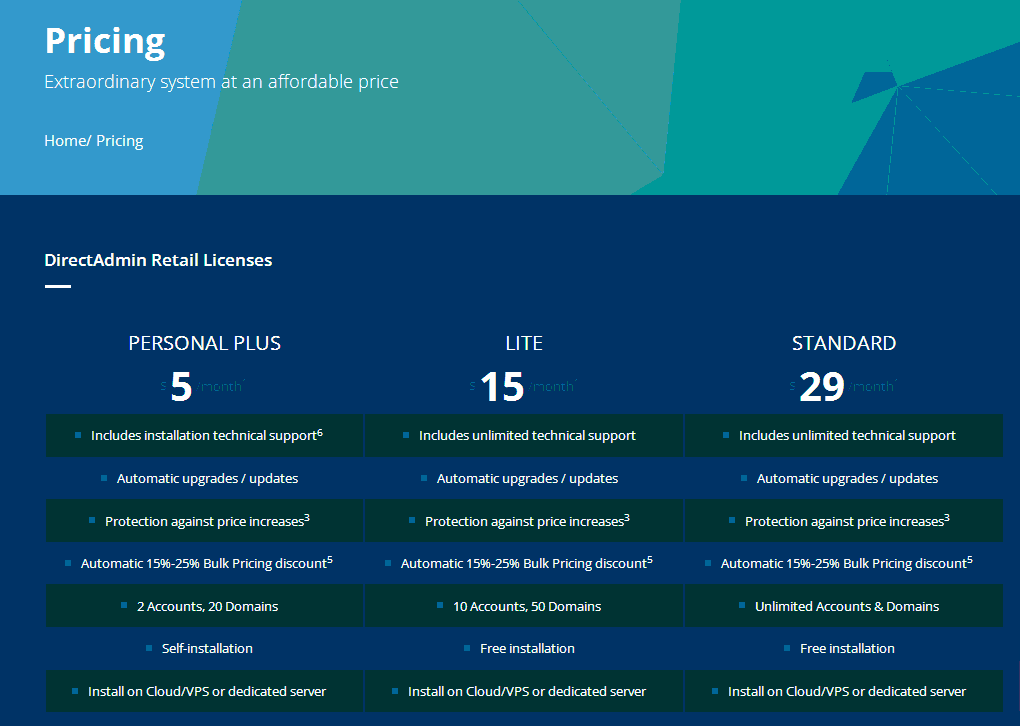
On the official website, three license types are available:
- Personal Plus,
- Lite,
- Standard.
They differ in price and the number of supported accounts and domains.
Personal Plus is suitable for personal projects, Standard for large companies, and we’ll focus on the middle option — Lite.
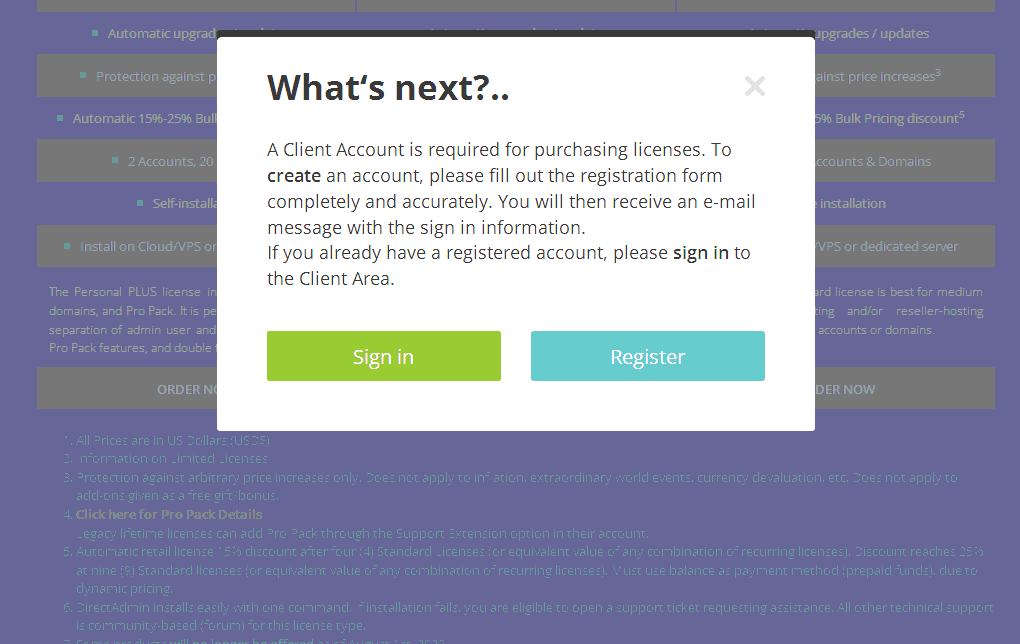
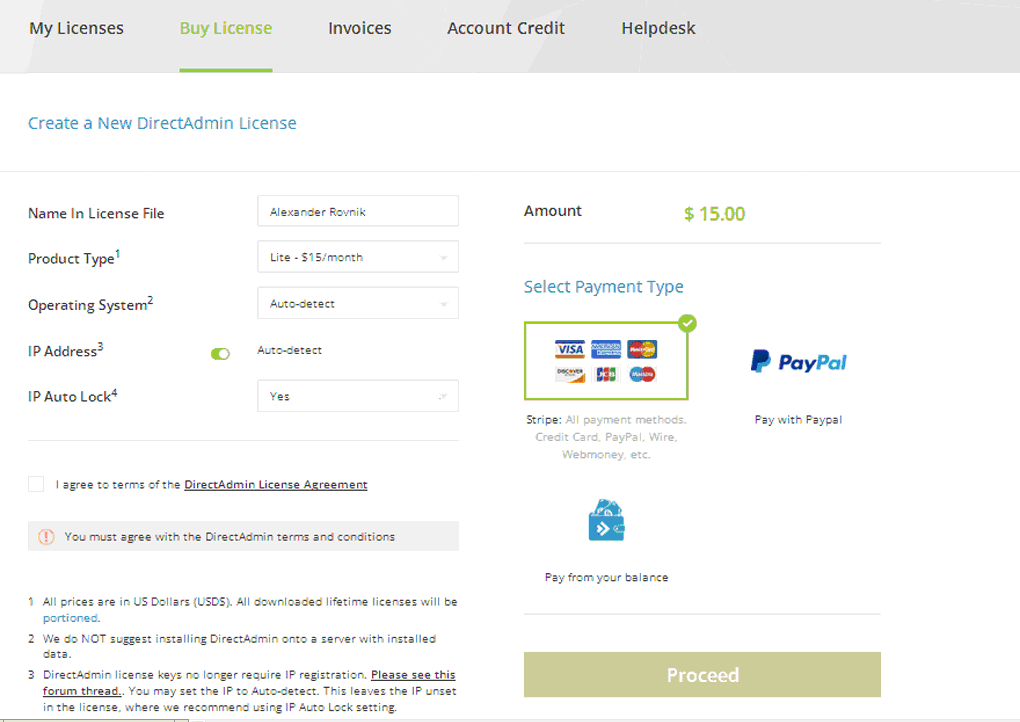
After selecting a plan, the user is prompted to register or log into their account, fill in the form (client name, license type, OS, IP address), and complete the payment.
Once payment is completed, your account will display a LICENSE KEY — you’ll need it during installation.
System Requirements for DirectAdmin Installation
| Parameter | Minimum Requirements |
|---|---|
| OS | CentOS, RHEL, Ubuntu, Debian, CloudLinux, VzLinux (64-bit) |
| Processor (CPU) | AMD or Intel, from 500 MHz |
| RAM | 2 GB |
| Swap | 2 GB |
| Disk Space | 10 GB |
| Compilers | gcc, g++ |
| Protocol | SSH |
| Language | Perl |
The developers emphasize: the system must be “clean” — only the OS should be installed, with no third-party software. During installation, DirectAdmin will automatically install all necessary components: web server, database, file manager, etc.
Preparing the Server Environment
In this example, we’ll use Ubuntu 20.04 (64-bit), which fully meets the requirements.
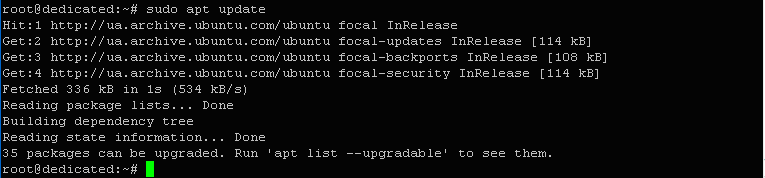
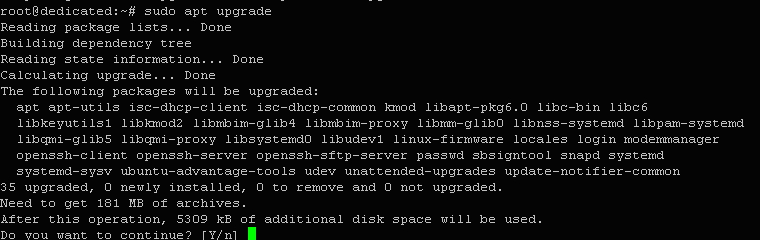
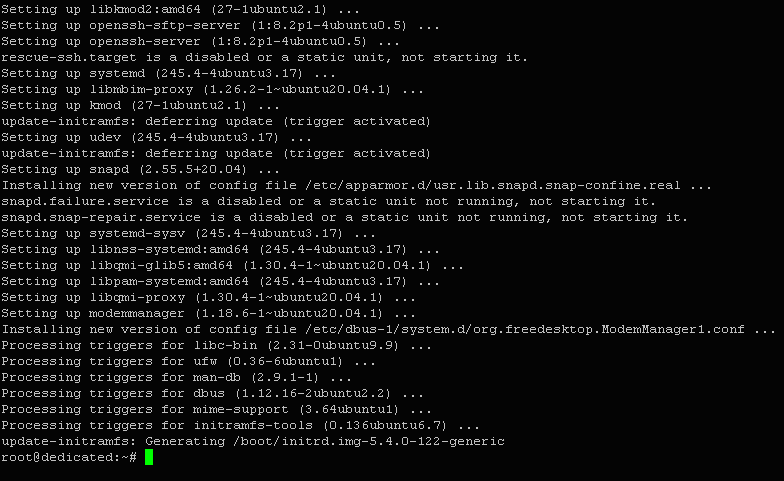
First, update the OS packages:
$ sudo apt update
$ sudo apt upgrade
Next, install the required compilers and libraries:
$ apt-get install gcc g++ make flex bison openssl libssl-dev perl perl-base perl-modules libperl-dev libperl4-corelibs-perl libaio1 libaio-dev \
zlib1g zlib1g-dev libcap-dev cron bzip2 zip automake autoconf libtool cmake pkg-config python libdb-dev libsasl2-dev \
libncurses5-dev libsystemd-dev bind9 dnsutils quota patch libjemalloc-dev logrotate rsyslog libc6-dev libexpat1-dev \
libcrypt-openssl-rsa-perl libnuma-dev libnuma1

Once installation is complete, the environment is ready to use. The SSH protocol (OpenSSH) is already available in Ubuntu, so no further action is needed.
Automatic Installation (Default)
This is the fastest way to deploy the panel. All configurations (PHP versions, DNS, mail services, etc.) will be installed automatically.
Installation command:
$ bash <(curl -LSs https://download.directadmin.com/setup.sh || curl -LSs https://download-alt.directadmin.com/setup.sh) 'KEY'
where 'KEY' is your DirectAdmin license key.
After installation, the panel will be available at:
http://myhosting.com:2222
(replace myhosting.com with your server’s IP address).
Installation with Custom Hosting Parameters
If your server already has an existing infrastructure with custom configurations (PHP versions, DNS parameters, etc.), you can keep them.
To do this, create a configuration file options.conf in the directory:
/usr/local/directadmin/custombuild/
Example of file creation:
$ nano options.conf
File contents example:
#Statistics host settings
awstats=no
webalizer=no

#Custombuild new settings
custombuild=2.0
After saving, copy the file to the custombuild directory.
Then, download the installation script:
$ wget -O setup.sh https://download.directadmin.com/setup.sh
Grant execution permissions:
$ chmod 755 setup.sh
And start the installation:
$ ./setup.sh
After entering your license key, the process will complete, and the panel will be ready for use.
Access the interface at the standard address:
http://your_domain_or_IP:2222