



The level of Internet security when working with various types of information systems is closely related to the user authentication system, which may include one or several layers of protection. The more layers there are, the more reliable the protection. Let’s take a look at the principles of organizing two-factor authentication for protecting a workstation running Ubuntu, using the well-known Google Authenticator application as an example.
Simple Authentication Systems
User authentication systems are used in almost all commercial and non-commercial software products and services, including:
- Database Management Systems (DBMS);
- Email services;
- Banking systems;
- Operating Systems (OS);
- Network services and hardware.
Until recently, most of these programs and services supported only single-factor credential protection, where one access password stored in a database was used for user identification. If the entered password matched the record in the database, the user was authorized and granted access to resources according to their permissions. Otherwise, access was denied.
However, such systems quickly became targets of cyberattacks, and it became evident that a single password is not enough to ensure a proper level of security — even if the credentials are encrypted using algorithms such as SHA-256 or SHA-512.
The problem is that a simple authentication system relies on only one security factor (token) — the access password. It can be compromised — it’s just a matter of time. Only by adding a second layer of protection or an additional token can security be significantly improved.
Systems with Enhanced Reliability
Such systems include all those that use more than one security token.
You can add an additional level of protection to an existing software product or service by deploying third-party authentication modules and connecting an independent communication channel for token transmission — for example, a GSM mobile phone channel.
Today, similar systems are developed based on open-source OATH (Open Authentication) software and include:
- Command-line utilities;
- Linked function libraries;
- PAM (Pluggable Authentication Module) components.
The most well-known examples are Google Authenticator and Yubico Authenticator Desktop.
Their working principles are similar, with differences mainly in the supported platforms and token generation algorithms.
The token generation process is strictly defined by RFC specifications. The most commonly used algorithms are:
- HOTP — an algorithm for generating a sequence of random numbers;
- TOTP — an algorithm that generates sequences of characters at defined time intervals.
When installing the software, the user can choose the desired type of algorithm.
Google Authenticator is one of the most popular solutions of this type because it can be connected to almost any platform or service. For example, it can protect an email account or a Linux user account from unauthorized access.
Next, let’s look at an example of deploying Google Authenticator to protect a workstation running Ubuntu.
Configuring Google Authenticator for Ubuntu
Connecting Google Authenticator involves several steps:
- Install the Google Authenticator app on a mobile device.
- Configure the Ubuntu system files.
- Install the PAM module provided by the developers.
- Link the user account.
1. Installing Google Authenticator on a Mobile Device
The app is available for two platforms — Android and iOS.
To install it, simply follow the corresponding link in your app store.
After clicking “Install”, the installation process will begin, showing short explanations of how the app works.
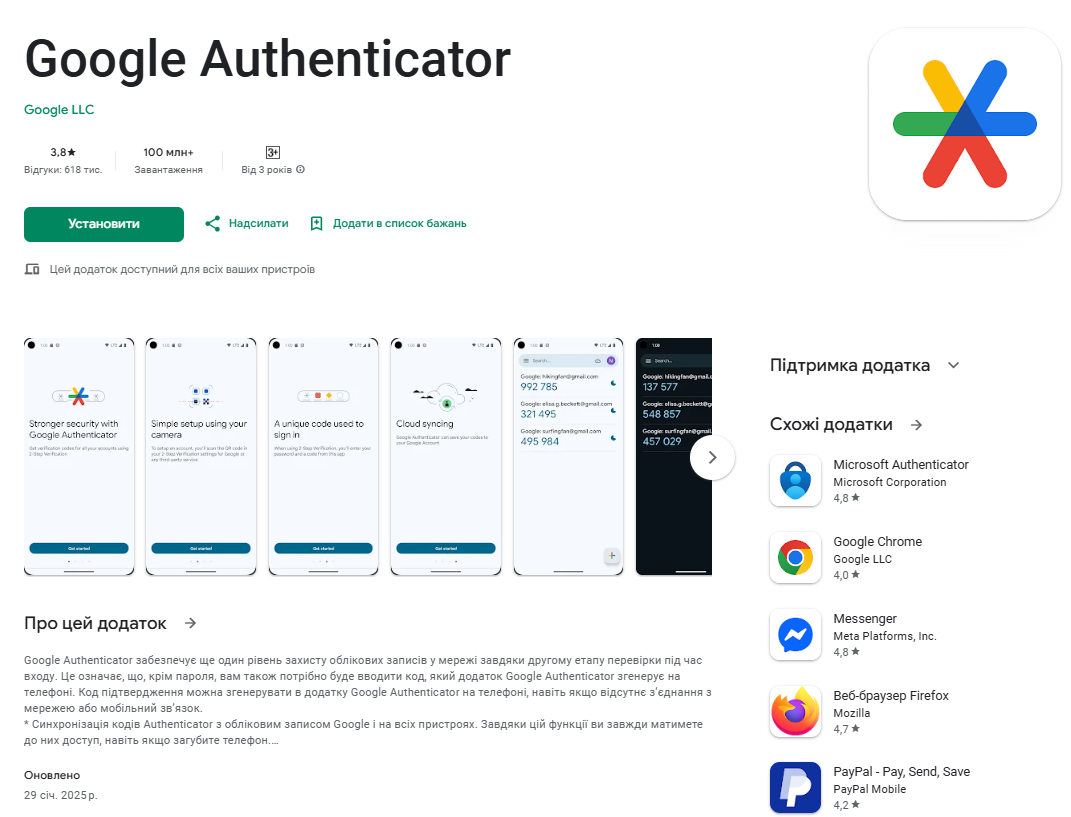
The main purpose of the app is to generate a six-digit code that must be entered in the login window of the protected system.
2. Configuring Ubuntu System Files
You need to modify two SSH system files: sshd and sshd_config.
In the terminal, enter:
$ sudo nano /etc/pam.d/sshd
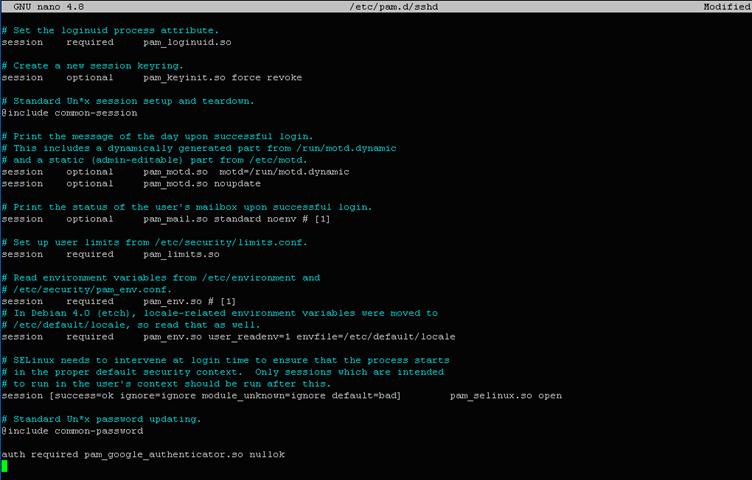
In the opened file, add the following line:
auth required pam_google_authenticator.so nullok
Then save your changes and close the editor.
Next, open the second file:
$ sudo nano /etc/ssh/sshd_config
In this file, enable multi-factor authentication support by setting the parameter:
ChallengeResponseAuthentication yes
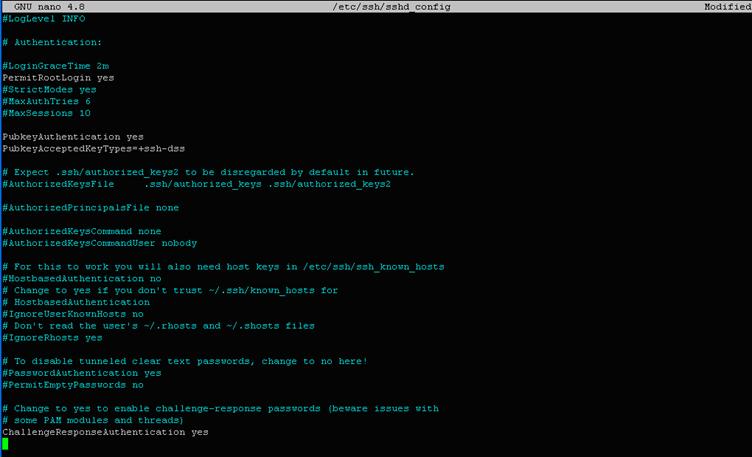
After saving the changes, return to the command line.
3. Installing the PAM Module
To connect Google Authenticator in Ubuntu, enter the following command in the terminal:
$ sudo apt install libpam-google-authenticator
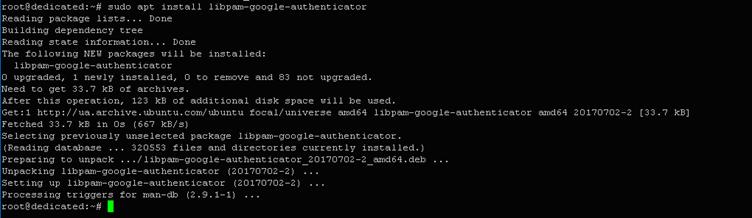
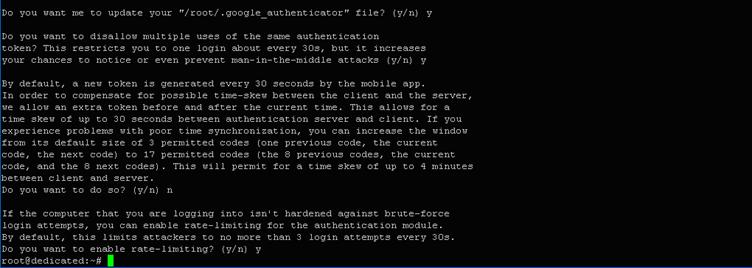
After installation, you need to initialize Google Authenticator by answering questions about configuration options — speed, algorithm type, time intervals, etc.
$ google-authenticator


4. Linking the User Account
To synchronize the Google Authenticator app on your mobile device with the PAM module on your workstation, you need to link your Ubuntu user account. This can be done by scanning the QR code that appears in the terminal after the program initialization.

Several important codes will also be displayed — make sure to save them:
- Secret key
- Six-digit verification code
- Five backup scratch codes
The secret key can be used to connect without a QR code (for example, if the phone’s camera is not working).
The verification code is a one-time code generated by the Google Authenticator app every 30 seconds.
The user must enter it into the login window before the code expires. If the codes match, authorization is successful.
Scratch codes are a backup way to restore access to the system in case other data is lost. More details about their use can be found in the Google Authenticator documentation.
After scanning the QR code, the system gains an additional layer of protection based on two tokens. If multiple users are registered on the workstation, two-factor authentication must be configured separately for each user account.
Thus, two-factor authentication provides a much higher level of security by combining a password with a one-time confirmation code, making unauthorized access impossible even if the password is compromised.